
How to create a dish card for a digital menu
Guide menu and contents
A dish card should help guests picture the portion and understand what they can order. Show the dish as it’s served and put the name, price, a short description and portion size beside it. Guests should be able to find ingredients, allergen information and any extra charges before ordering.
What guests should see straight away
Make the name easy to understand, even when the chef has given the dish a creative name. Start the description with the main ingredient, how it’s cooked and one detail that helps guests choose. “Muksun whitefish a la plancha with lemon and herbs” tells diners more than “The chef’s muksun”. Explain local terms a visitor may not recognise.
Show the weight or quantity next to the price if it affects the choice. For dishes priced by weight, state the price per unit and how guests can find the total. Show paid extras, availability and any choice of side separately. Update prices and item availability from one source.
Look at two real Sonya Menu dish cards
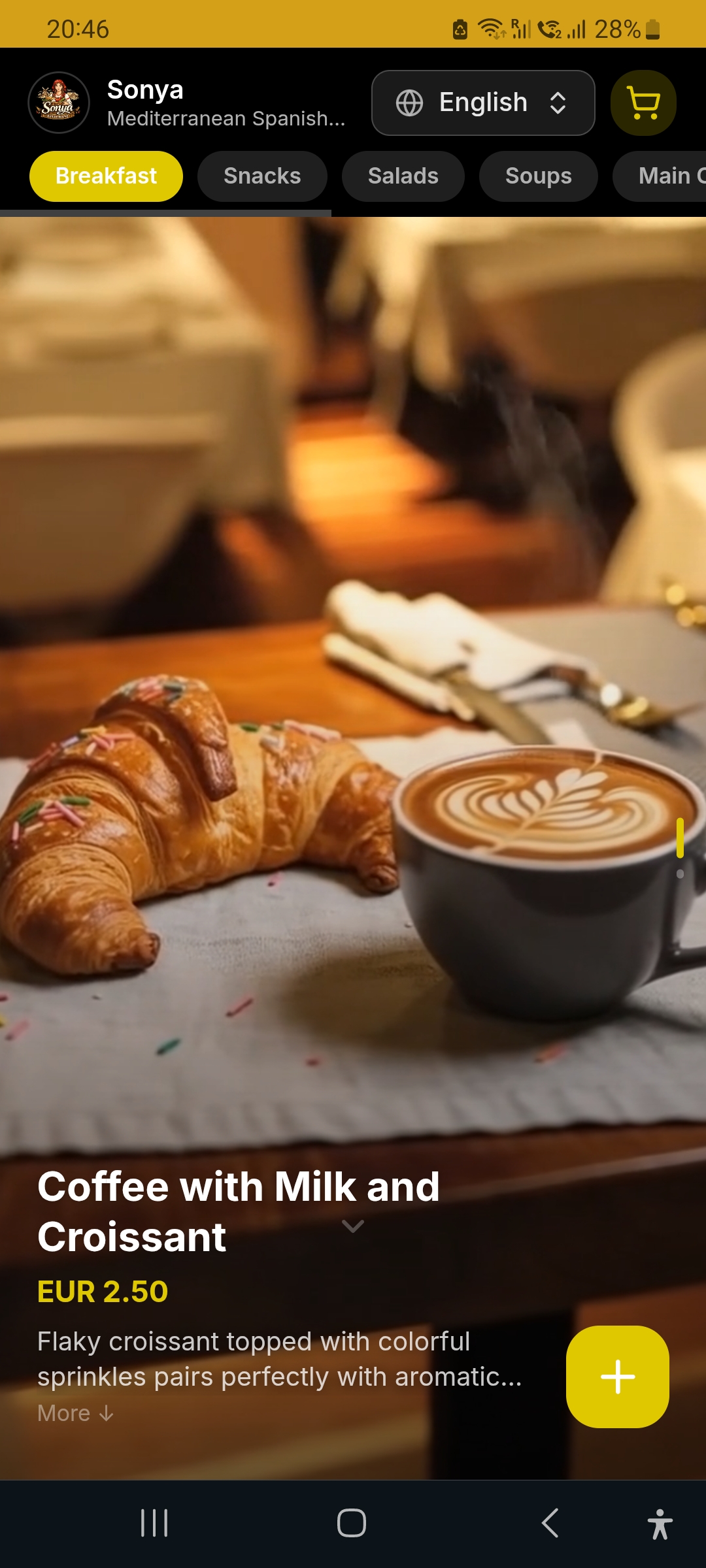
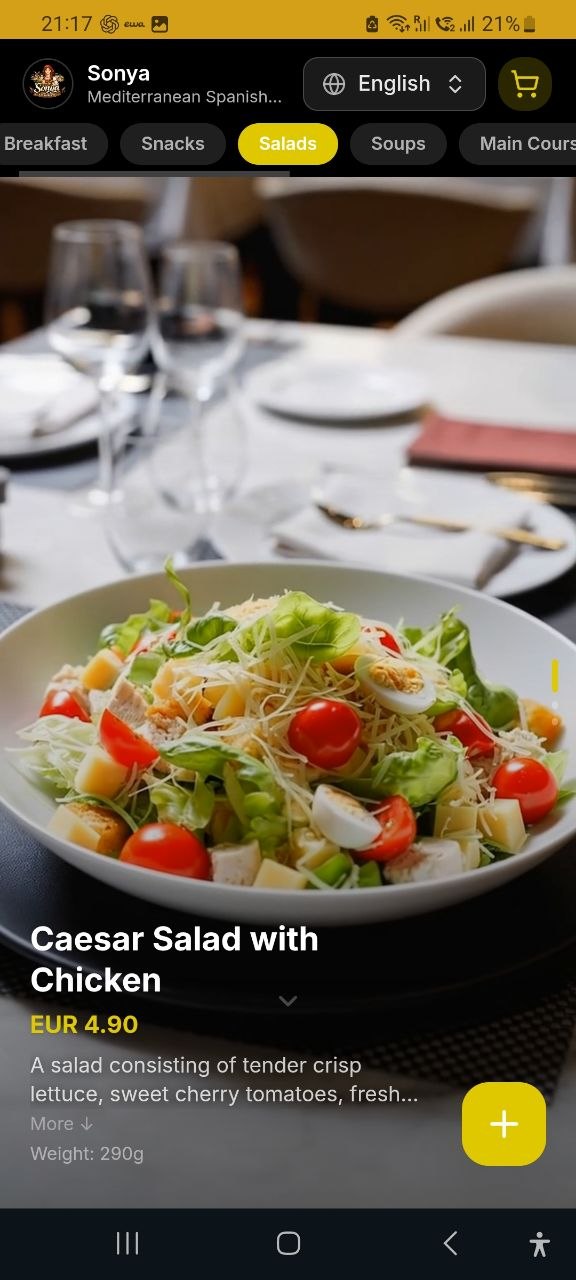
On Sonya Menu, the photo or video fills most of the screen, while the name and price are shown as separate text. A smartphone is enough to get started. Check that the important details stay visible on a small screen and that guests can expand a shortened description.
Prepare the photo, description and translation
Have the chef confirm the plating. Photograph the dish in soft light and show the whole plate or something guests can use to judge the size. For a hot dish, capture a close-up of the texture followed by a wider view. Compare the photo with what the kitchen serves at peak times.
Check the meaning of translations. Explain local names and verify units, prices and culinary terms. Confirm allergen information separately with the kitchen. Keep one approved source card so changes to the recipe or ingredients reach every language.
Check the card before publishing
- Ask someone outside the team to identify the dish, price and any stated portion size at a glance.
- Open the card on common phone sizes and a slow connection. Check that the text stays readable.
- Match the ingredients and allergen information to the kitchen’s approved records.
- Make sure the photo shows the plating you currently serve. Update the image and text if a side dish changes.
- Switch languages and check that the price, quantity and extras still mean the same thing.
Start with five popular dishes and note what diners still ask staff. If they regularly ask about portion size or how spicy a dish is, answer that in the card before expanding the approach to the whole menu.
Sources
Want a team to help market your restaurant?
Use this guide to make the changes yourself. If you want help finding where you’re losing diners and turning the plan into action, OliveMKTG can connect your website, menu, Google profile, content and ads to measurable table bookings.
Talk to us about restaurant marketing